Sign IPA files anywhere — Web, iPhone, Desktop & Telegram
No Mac, no Xcode, no jailbreak. Re-sign your iOS apps with your own P12 certificate and provisioning profile, and check certificate status in seconds.
- No Mac required
- Done in about 1 minute
- Free to start
Choose how you want to sign
Five tools, one workflow. Pick the one that fits your device.
Web Signing
Upload IPA, P12 and profile in your browser and get an install link instantly.
Learn moreMobile Signing
OSign signs and installs IPA files locally on your iPhone or iPad.
Learn moreDesktop Signing
A local signer for Windows and macOS with batch signing and dylib injection.
Learn moreCertificate Check
Verify whether a P12, provisioning profile or IPA is valid, expired or revoked.
Learn moreTelegram Bot Signing
Send your files to @ipasignxbot and receive a signed IPA right in the chat.
Learn moreDiscussion Group
Questions, updates and tips — talk to the team and other users on Telegram.
Join nowWhy IPASignX?
Faster, safer and simpler iOS app signing.
Fast signing
Add your files and get an installable package in about a minute.
Secure & private
Mobile and desktop signers work fully offline — your certificates never leave your device.
Cross-platform
Windows, macOS, iPhone, iPad, any browser, or just Telegram.
Free to start
Core signing and certificate checking are free to use.
Frequently asked questions
Do I need a Mac or Xcode to sign an IPA?
No. With the web signer, the OSign mobile app or the Telegram bot you can sign IPA files from Windows, Android, iPhone or any browser.
What files are required for signing?
You need the .ipa file, a .p12 certificate with its password, and a matching .mobileprovision provisioning profile.
Which signing method should I choose?
Web signing for a quick start with nothing to install, OSign mobile if you only have an iPhone, OSign Desktop for batch and advanced options, or the Telegram bot if you live in Telegram.
How can I tell if my certificate is revoked?
Upload your .p12, .mobileprovision or .ipa to the certificate checker to see its status, expiry and revocation time.
Why does my app say "Unable to install"?
Usually the certificate is expired or revoked, or a VPN is enabled. Turn off VPN, re-sign with a valid certificate and install again.
What does "Untrusted Enterprise Developer" mean?
It's a normal iOS security prompt. Go to Settings → General → VPN & Device Management, tap the developer certificate and choose "Trust".
Are my certificates and files safe?
OSign mobile and OSign Desktop sign entirely on your device — nothing is uploaded. If privacy matters most, choose one of these local signers.
Can I sign multiple IPAs at once?
Yes. OSign mobile and OSign Desktop both support batch signing multiple IPAs with the same certificate and profile.
Can I change the app name, Bundle ID or version?
Yes. OSign Desktop lets you edit the app name, Bundle ID, Version and Build, and optionally inject .dylib / .framework files.
Where can I get help?
Join our Telegram discussion group — the team and community are happy to help.
Sign IPA online — no Mac, no Xcode
Upload your .ipa, .p12 certificate and .mobileprovision profile in any browser. IPASignX re-signs the app in the cloud and gives you an install link and QR code for beta testing.
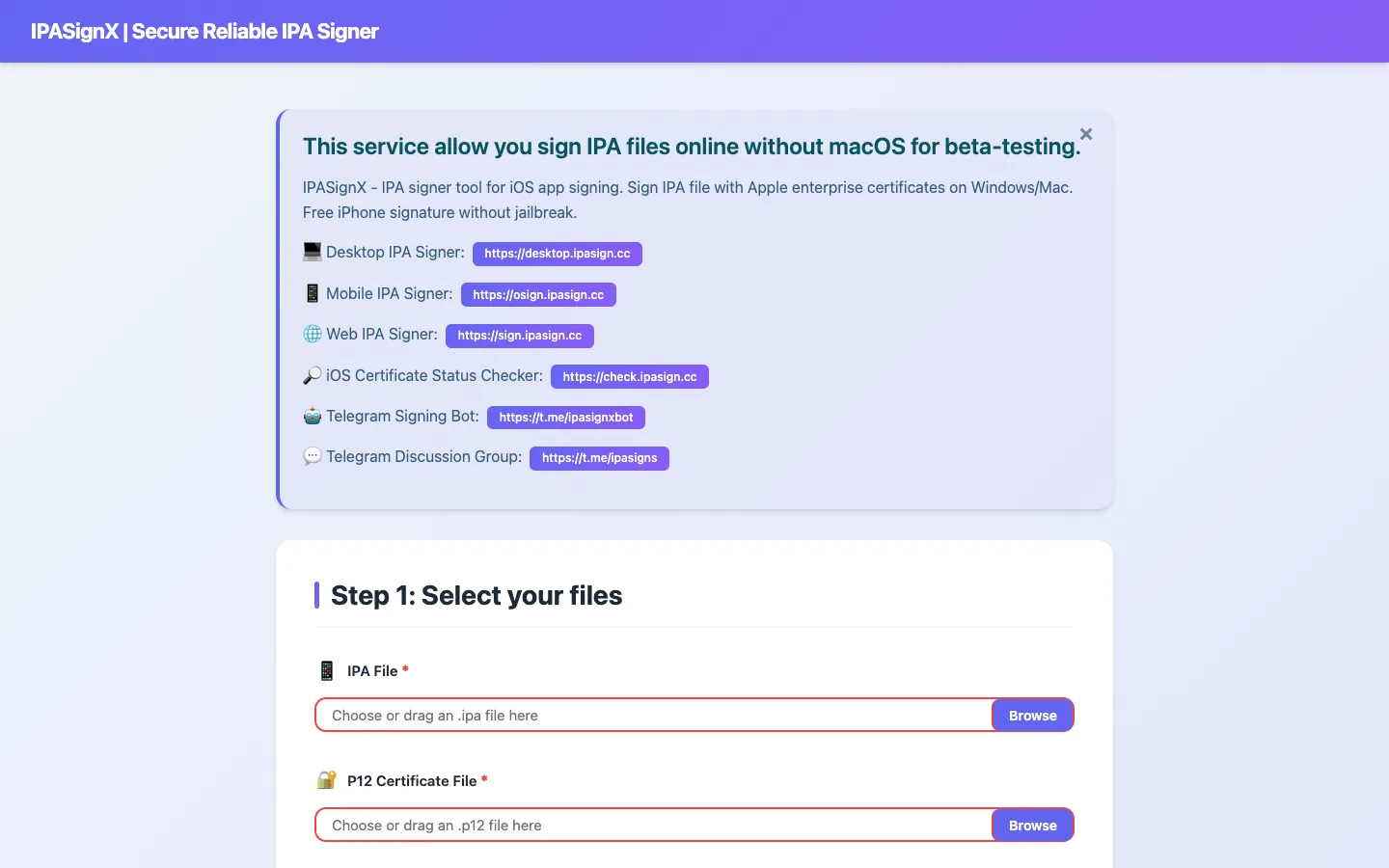
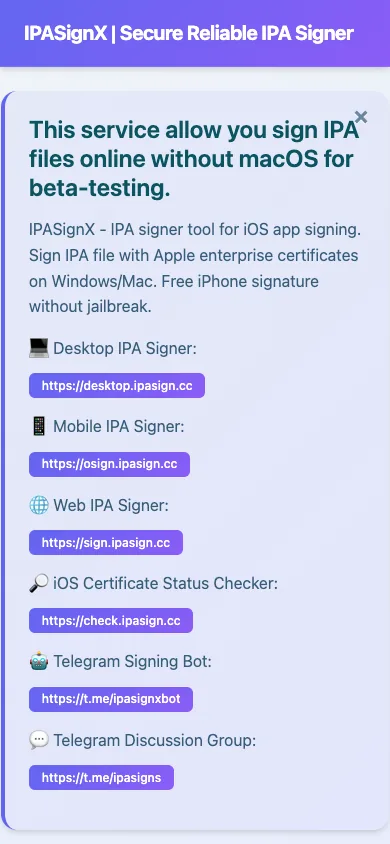
Works in any browser
Windows, macOS, Linux, Android or iPhone — nothing to install.
Your own certificate
Sign with your enterprise or developer P12 and matching provisioning profile.
Scan to install
Install directly via link or QR code once signing is finished.
Fast processing
Packaging and signing complete automatically in about a minute.
How it works
- 1
Select files
Choose your IPA, P12 certificate and provisioning profile.
- 2
Enter password
Type the P12 certificate password.
- 3
Processing
The app is re-signed online with your certificate.
- 4
Install
Tap the link or scan the QR code to install.
Ready to sign your IPA?
Visit the web signer to get started — it only takes a minute.
Sign & install IPA right on your iPhone
OSign is a professional on-device IPA signer. It doesn't rely on cloud services — import your IPA, P12 and provisioning profile, and OSign instantly produces an installable app. Simple, efficient and fully local.

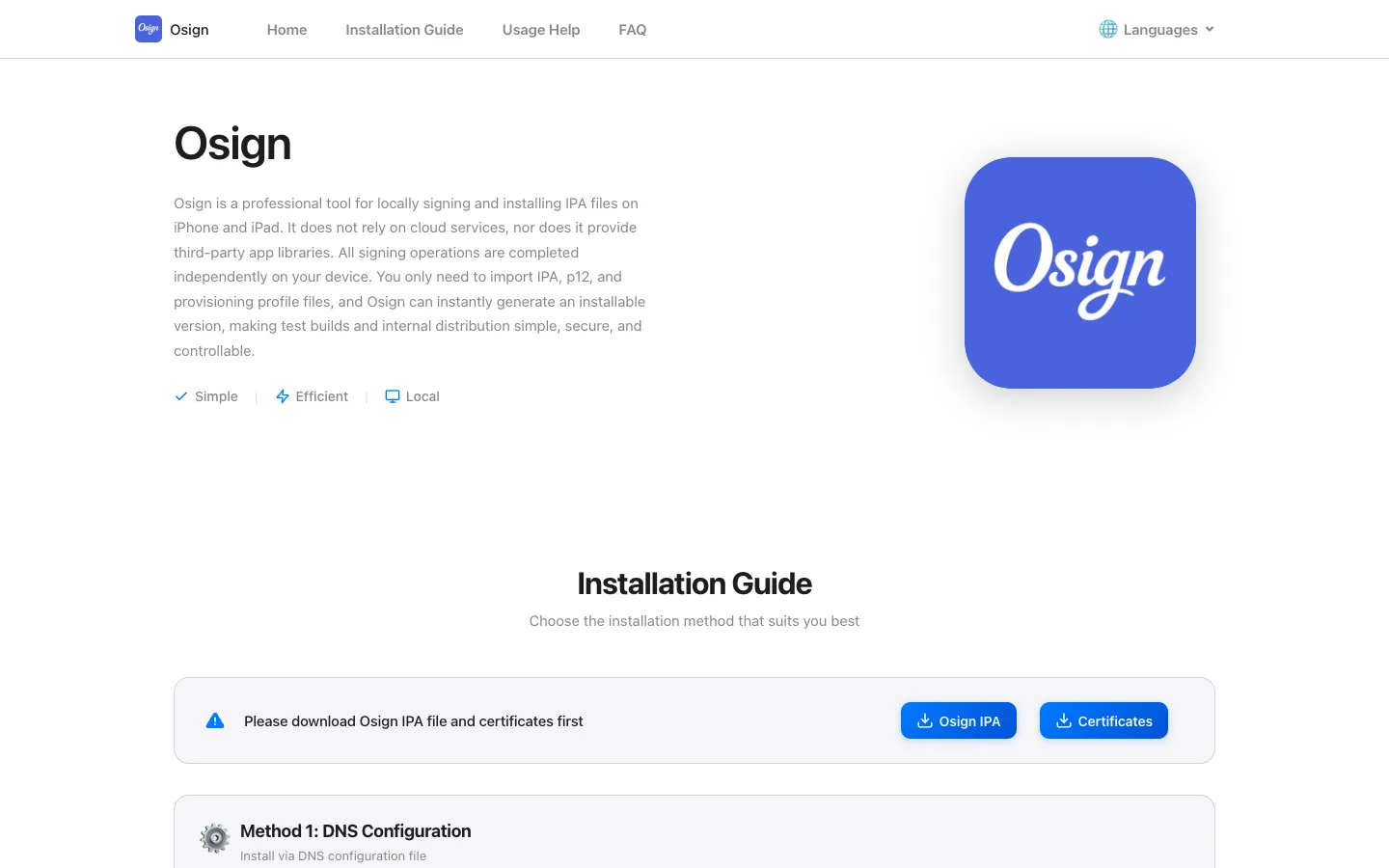
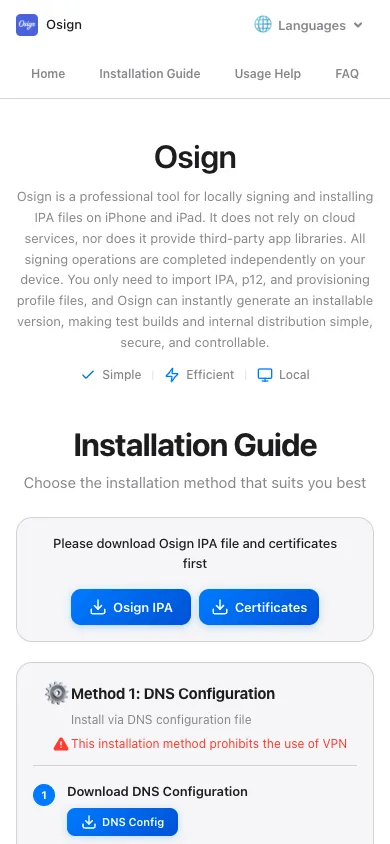
100% local
All files stay on your device and are never uploaded to any server.
Batch signing
Import multiple IPAs and sign them with the same certificate at once.
Certificate manager
Keep your P12 certificates and provisioning profiles organized in one place.
Install in seconds
Tap Sign, wait a few seconds, and install immediately.
How it works
- 1
Import certificate
In "Certificate", tap + to add your P12 and provisioning profile.
- 2
Import IPA
In "Library", tap + and import the IPA you want to sign.
- 3
Select app
Find and select the imported IPA in your library.
- 4
Sign & install
Tap "Sign" → "Start Signing", then install when ready.
Want the installation guide?
DNS install, direct install, video tutorial and FAQ are all on the OSign site.
Sign IPAs and manage certificates locally on your computer
Pick a package, choose a local certificate, and sign in one click. No account login, no device binding — a desktop client for authorized testing on Windows and macOS (Intel & Apple Silicon).
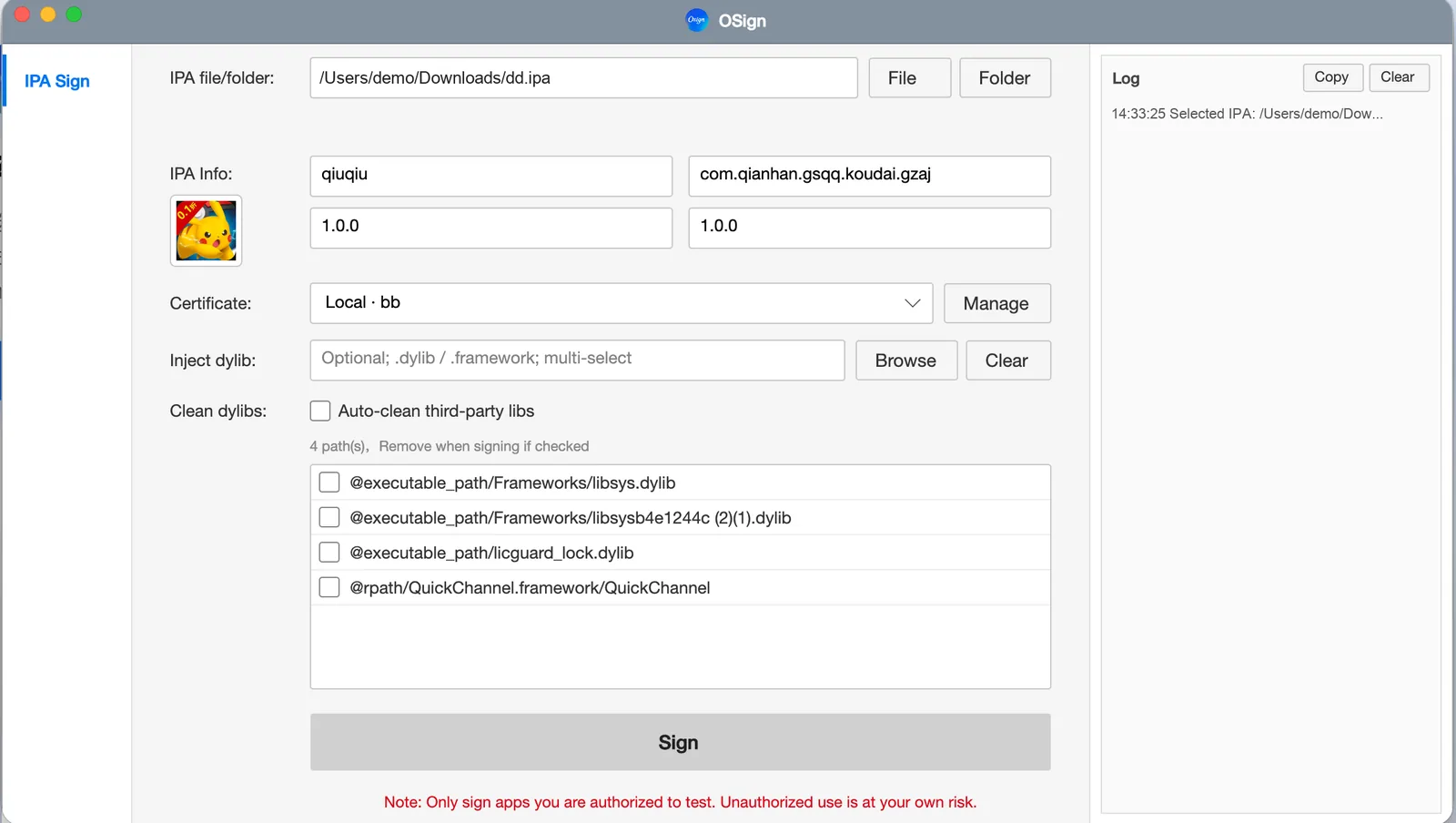
Interface
Certificate manager and check results — clear end to end.
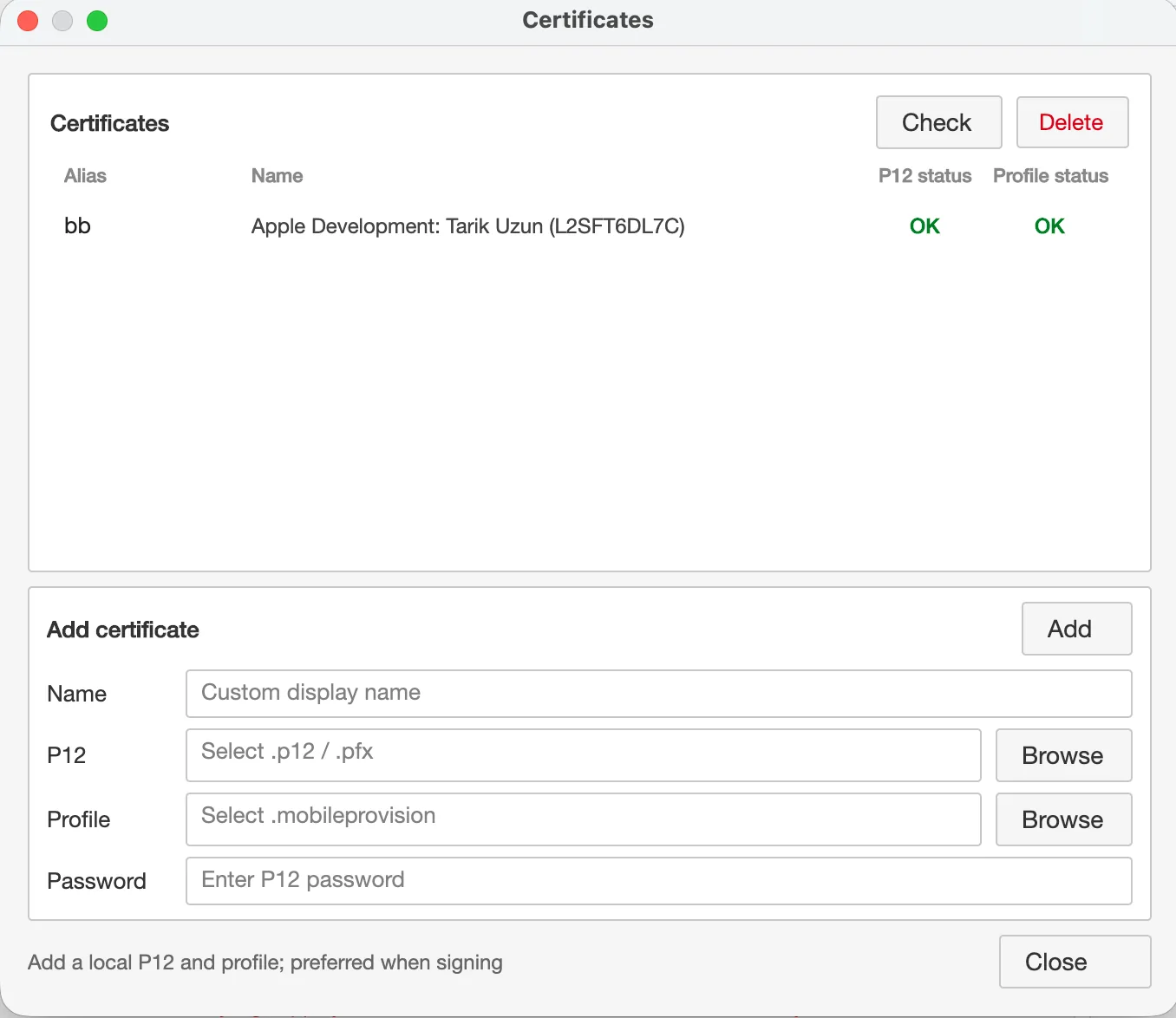
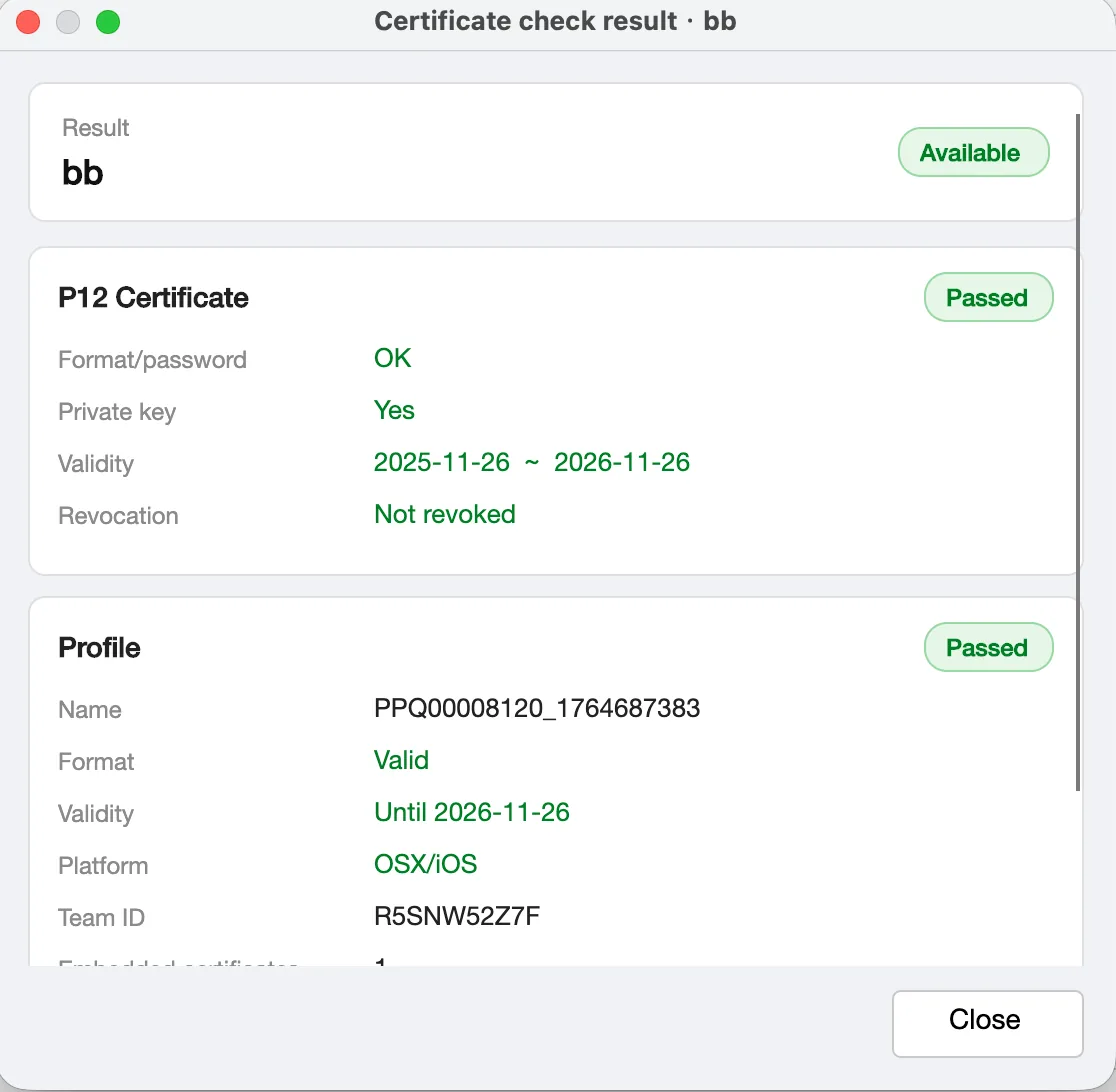
Local IPA signing
Sign a single IPA or batch-sign a whole folder.
Certificate manage & check
Validate expiry, revocation and certificate match.
App identity editing
Edit app name, Bundle ID, Version and Build with icon preview.
Dylib inject & clean
Inject .dylib / .framework and auto-clean third-party locks.
Cross-platform
Windows and macOS builds, Intel and Apple Silicon.
No account login
No sign-up and no device binding required.
How it works
- 1
Download
Get the Windows or macOS (Intel / Apple Silicon) build.
- 2
Add certificate
Import your local P12 and provisioning profile.
- 3
Pick IPA
Choose a file or a folder, optionally edit app info.
- 4
Sign
Click Sign and get the output package.
Download OSign Desktop
Downloads, opening tips for Windows / macOS and full help are on the desktop site.
Is your certificate valid, expired or revoked?
Upload a .p12, .mobileprovision or .ipa file and instantly see the certificate status, name, expiry, revocation time and provisioning profile details.
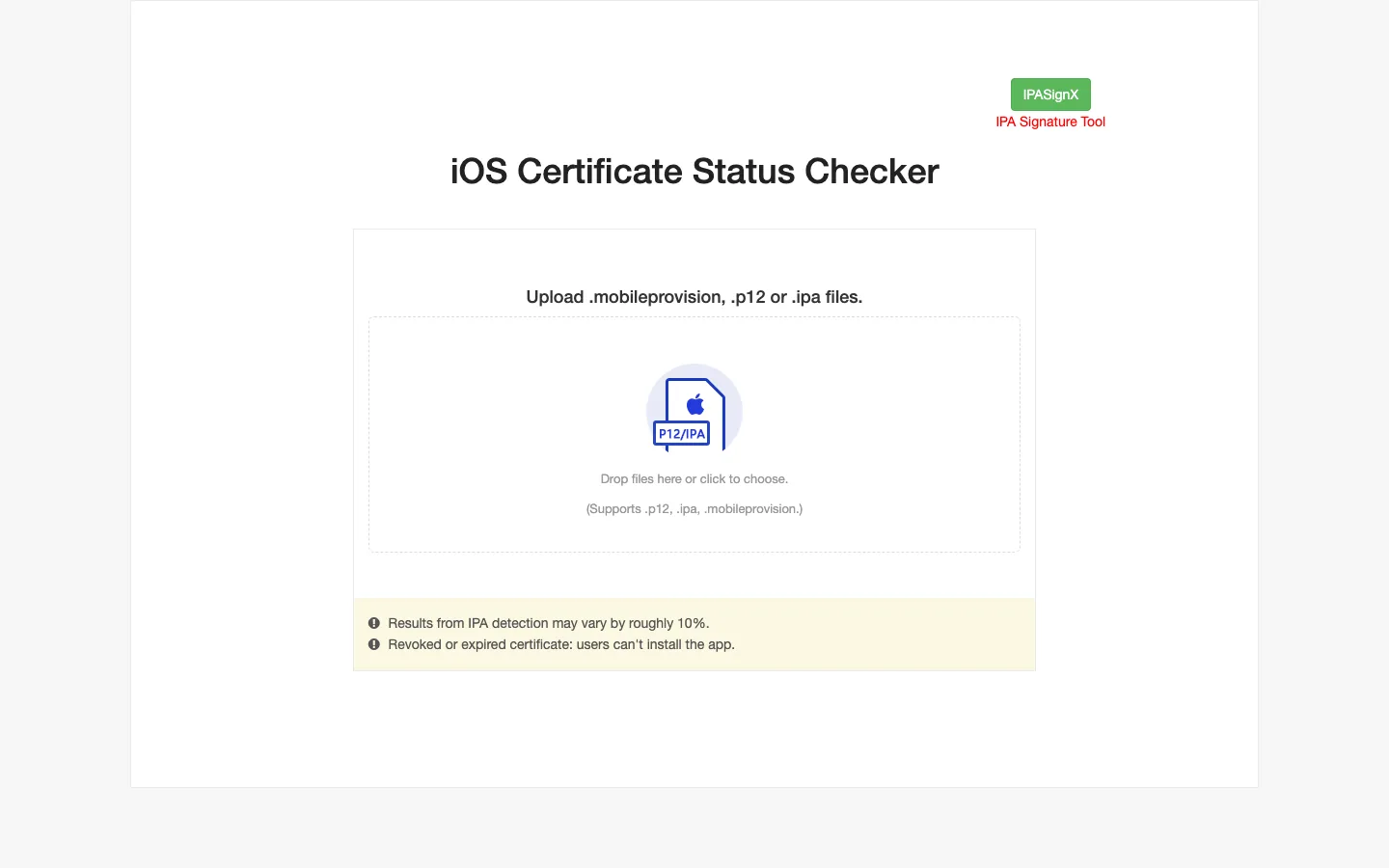
3 file types
Supports .p12, .mobileprovision and .ipa files.
Revocation detection
Find out if a certificate was revoked and when.
Profile details
See provision status, ID, expiry and certificate type.
Drag & drop
Drop files on the page and get results within seconds.
How it works
- 1
Upload files
Drop your .p12, .mobileprovision or .ipa file.
- 2
Enter password
Provide the P12 password if you upload a certificate.
- 3
View results
Revoked or expired certificates can't install apps.
Check before you sign
Avoid "Unable to install" — verify your certificate status first.
Sign IPA files right inside Telegram
No website, no app to install. Open @ipasignxbot, send your IPA, certificate and provisioning profile, and the bot sends back a signed app ready to install — from any device that runs Telegram.
Chat-based
Everything happens in a conversation — just follow the prompts.
Any device
Use it on iPhone, Android, desktop or Telegram Web.
Quick turnaround
Receive the signed IPA within moments of sending your files.
Nothing to install
If you have Telegram, you already have the signer.
How it works
- 1
Open the bot
Search @ipasignxbot in Telegram or tap the button above.
- 2
Send /start
The bot will guide you step by step.
- 3
Upload files
Send the IPA, P12 (with password) and provisioning profile.
- 4
Get your app
Receive the signed app and install it.
Try the signing bot
Open the bot in Telegram and send /start to begin.
Join the IPASignX discussion group
Our Telegram group is the best way to reach us — get update notifications, usage tips, troubleshooting help and talk with other users.